
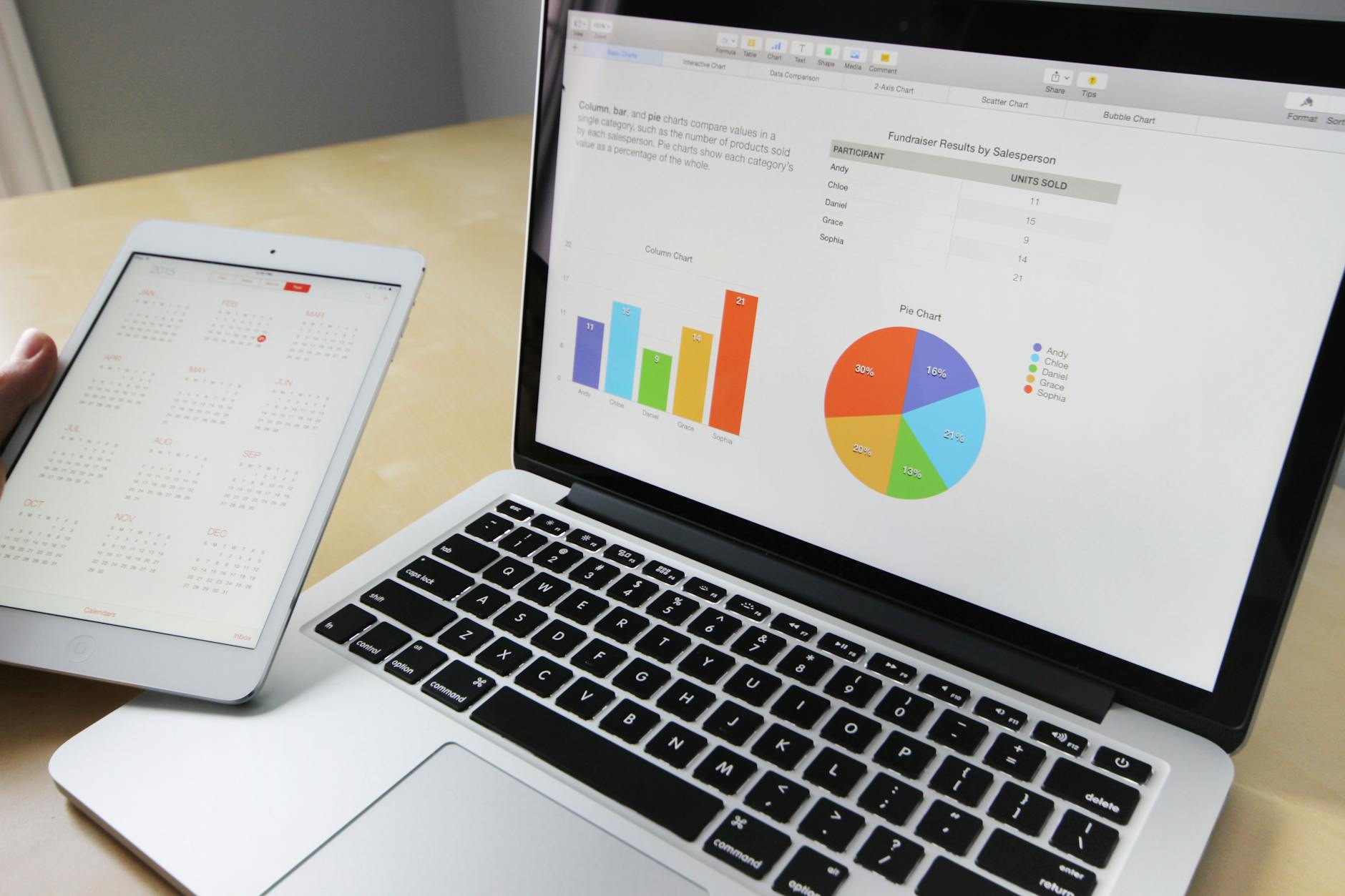
Business laptop touchscreens are one of those features that splits IT buyers cleanly into two camps: people who swear by them and people who wonder why they paid extra for a smudged display. The truth is somewhere in the middle, and it depends heavily on the role, the software stack, and the physical environment where the device actually gets used.
What a touchscreen actually changes on a business laptop
The obvious answer is input. A touchscreen lets users tap, swipe, pinch, and scroll without moving their hand to the trackpad or mouse. For Windows 11, which was redesigned with touch in mind, this feels natural on forms, PDFs, and lightweight annotation tasks. For most enterprise software built around keyboard-and-mouse workflows, it adds very little.
The less obvious change is the display panel itself. Touchscreen laptops almost always use a glossy glass layer bonded over the panel. That glass reflects ambient light. In an office with overhead fluorescents or near a window, the glare is real and constant. Compare that to a standard matte-finish IPS panel, which scatters reflections and keeps content readable without adjusting the room. If your team works in variable lighting, that difference matters every day.
Touchscreens also add weight. The digitiser layer and reinforced glass typically contribute 150–250 grams to the chassis. On a 14-inch business laptop already sitting at 1.4 kg, that's a 10–18 per cent increase. For field workers and road warriors who carry their device for hours, this isn't trivial. If weight and build quality are already on your evaluation list, factor this in before committing. Our breakdown of business laptop weight and build quality covers how chassis materials interact with that added mass.
The battery hit is real
Touchscreen panels draw more power than their non-touch equivalents. The digitiser layer requires a continuous low-level power draw to stay responsive, and the brighter backlight needed to compensate for the glossy overlay compounds the drain. In practice, Australian IT buyers can expect a 10–20 per cent reduction in real-world battery life compared to the non-touch version of the same model.
That's a meaningful gap. A laptop rated at 10 hours by the manufacturer might deliver 7 hours in typical office use without a touchscreen. With one, that number can fall closer to 6. For roles tied to a desk with a docking station nearby, this is irrelevant. For roles that regularly spend full days away from power, it isn't.
Manufacturer battery claims are optimistic regardless of whether a device has a touchscreen. Understanding what the stated figures actually represent is worth doing before any fleet purchase. Our piece on business laptop battery life covers what those numbers hide.
When a touchscreen genuinely earns its place
There are roles where touch input delivers a clear productivity gain. Field service technicians signing off work orders on-site benefit from a touch interface paired with a stylus-capable display. Healthcare workers logging patient data in environments where a mouse isn't practical find touch navigation faster. Executives reviewing and annotating documents in meetings often find touch more fluid than a trackpad.
2-in-1 form factors, where the display folds flat or detaches entirely, make touchscreen nearly mandatory. If you're buying a convertible like a Lenovo ThinkPad X1 Yoga or an HP EliteBook x360, the touch layer is the point. Without it, the tablet mode is useless.
For general-purpose office workers doing email, spreadsheets, video calls, and browser-based SaaS tools, touch adds nothing to the workflow. Most users in this category reach for the touchscreen in the first week and then stop. The smudges accumulate. The glare persists. The habit doesn't form.
Stylus support changes the equation
Active stylus support is a separate question from touch. Devices that support an active pen, like those using Microsoft Pen Protocol or Wasp Protocol, open up handwriting, sketching, and precise annotation. This is genuinely useful for architects, designers, field engineers, and anyone whose work involves marking up drawings or freehand notes.
Not every touchscreen laptop supports an active stylus, and not every stylus works on every device. Buyers should check protocol compatibility explicitly, not assume that "touch-enabled" means stylus-capable. The Dell Latitude and HP EliteBook lines have strong stylus support. Some budget-tier touchscreen options only handle finger input, which limits the annotation use case significantly.
Display specs interact with touch in ways buyers miss
A touchscreen on a low-resolution or low-brightness panel can actively make the experience worse. The glossy overlay reduces perceived contrast and colour accuracy. A 250-nit panel that looks acceptable with a matte finish becomes hard to read outdoors or under bright indoor lighting with glass over it. If touch is a firm requirement, budget for at least 400 nits of brightness and a full HD or better resolution to compensate.
The display specs on a business laptop datasheet need to be read in context of the panel type, not in isolation. Understanding what brightness, colour gamut, and panel technology figures actually mean is a different exercise from reading the touch spec. Our guide to business laptop displays covers how those numbers interact in practice.
The cost premium and procurement reality
Touchscreen options typically add AU$150–$400 to the price of a business laptop, depending on the tier and vendor. Across a fleet of 50 devices, that's AU$7,500–$20,000 in additional spend. If the use case doesn't justify touch, that budget is better allocated to more RAM, faster storage, or better cellular connectivity for mobile workers.
Australian IT procurement teams negotiating volume deals should ask vendors explicitly about non-touch variants. Some product lines are only stocked in touchscreen configurations through local distributors, which can artificially narrow the apparent choice. HP, Lenovo, and Dell all offer both in their commercial ranges, but availability at a given price point varies by region.
The right question isn't whether touchscreens are good. It's whether the specific cohort of users you're provisioning will actually use touch in ways that improve their work. For most office-based roles in 2026, the answer is no. For field roles, healthcare workers, and 2-in-1 users, it's yes. Get that segmentation right before you lock in a fleet configuration.