
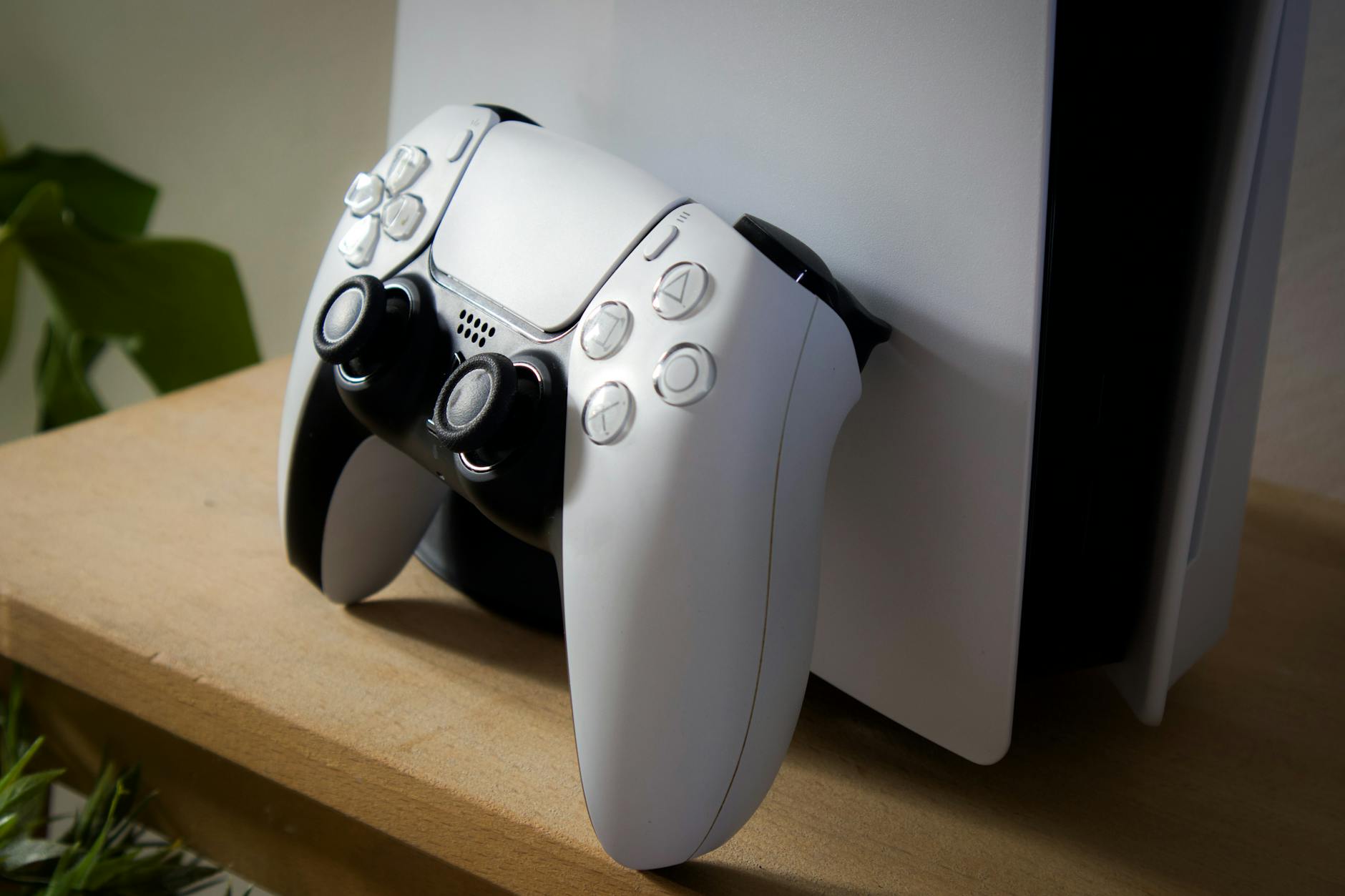
Connecting a PS5 DualSense controller to a PC or Mac is straightforward, but the experience varies depending on how you connect it and what software sits between the hardware and your game. A basic USB cable gets you started in minutes. Getting the haptic feedback and adaptive triggers to actually fire is a different conversation.
What you need before you start
The DualSense connects to PC and Mac over USB-C or Bluetooth. You'll need a USB-C to USB-A cable (or USB-C to USB-C if your PC or Mac supports it) for a wired connection. For Bluetooth, any built-in adapter works. No dongle is required, unlike some older Xbox controllers.
On PC, Steam is your best friend here. Valve has built native DualSense support into Steam's controller configuration layer, which means haptic feedback and adaptive triggers work in any Steam game that supports them. Without Steam, Windows treats the DualSense as a generic gamepad. That's usually fine for most games, but you'll lose the advanced features.
On Mac, support is more limited. macOS recognises the DualSense natively, but most Mac games don't implement DualSense-specific features. If you're using the controller primarily for game streaming or remote play, it performs well regardless.
How to connect via USB
This is the fastest method. Plug the USB-C end into the DualSense and the other end into your PC or Mac. Windows and macOS both detect the controller within a few seconds. No driver installation is needed on either platform in 2026.
On Windows, open Settings, navigate to Devices, and confirm the DualSense appears under "Bluetooth and other devices." On Mac, it shows up in System Settings under General, then Bluetooth (even for a wired connection, the system logs it). Steam detects it automatically and applies its DualSense configuration profile.
One practical note: use a quality cable. Cheap USB-C cables can cause intermittent disconnects that look like a controller fault but aren't. If you're seeing the controller drop out mid-game, try a different cable before troubleshooting anything else.
How to connect via Bluetooth
Put the DualSense into pairing mode by holding the PS button and the Create button simultaneously until the light bar starts flashing rapidly. That usually takes about three seconds.
On Windows: open Bluetooth settings, click "Add device," select Bluetooth, and choose "Wireless Controller" from the list. The connection completes in under ten seconds.
On Mac: open System Settings, go to Bluetooth, and the DualSense appears as "DualSense Wireless Controller." Click Connect. macOS pairs it immediately.
Bluetooth latency on the DualSense is low enough that it's not a practical concern for most gaming. Competitive players who need the absolute minimum input lag should use USB, but casual play over Bluetooth is perfectly comfortable. If you're also using the DualSense for stick drift issues that developed on PS5, those problems will carry across to PC too, so it's worth ruling those out first.
Making the most of it on Steam
Steam's DualSense support is the best available on PC. Once the controller is connected, open Steam's Big Picture Mode or the standard Steam overlay, go to Settings, then Controller, and confirm "PlayStation Controller Support" is enabled. Steam handles the rest.
Games that have implemented the DualSense's features will automatically use them through Steam. Returnal on PC is a good example: the adaptive trigger resistance changes with weapon charge, matching the PS5 version. Not every PC game supports this, but the library has grown.
If you want to use the DualSense in a non-Steam game, the easiest path is adding that game to Steam as a non-Steam game and launching it through Steam. This passes Steam Input through to the game, which often restores button prompts and basic controller support even in titles that don't natively support PlayStation controllers.
Third-party tools worth knowing
DualSenseX is the most widely used third-party application for DualSense control on Windows. It lets you configure haptic feedback intensity and adaptive trigger profiles for games that don't use Steam Input. The tool connects the DualSense as a virtual Xbox controller to the game while running its own layer for the PlayStation-specific features. It works well, though it adds a layer of complexity that most casual users won't need.
DS4Windows, originally built for the PS4 DualShock 4, also supports the DualSense. It's a good fallback if DualSenseX doesn't work with a specific game, but it doesn't support adaptive triggers.
Common problems and how to fix them
The controller isn't recognised in a game: most PC games expect an Xbox controller by default. If the game shows no input, try enabling "Xbox Controller Configuration Support" in Steam alongside PlayStation support. Steam will emulate an Xbox controller for that game. Alternatively, install DS4Windows as a background process.
The light bar stays orange instead of going white: this means the controller is in a low-power or unassigned state. On PC, it doesn't map to any player colour by default. The light behaviour is different from the PS5 console and is normal.
Bluetooth connection drops frequently: make sure the controller's firmware is current. Connect the DualSense to a PS5 and let it update if one is available. On PC, you can also update via Sony's DualSense firmware updater, which runs in a browser. Interference from other Bluetooth devices is a common culprit too: 2.4 GHz peripherals near the PC can degrade the connection.
Haptics don't work: check whether the game supports DualSense haptics on PC (many don't yet), and confirm the connection is USB rather than Bluetooth. Some haptic features are disabled over Bluetooth to conserve bandwidth.
Using the DualSense on Mac for game streaming
Mac gaming is limited, but the DualSense is an excellent controller for streaming services including PlayStation Remote Play, Xbox Cloud Gaming via Safari, and Steam Link. For PS5 Remote Play specifically, the DualSense connecting to a Mac over Bluetooth delivers a noticeably better experience than a third-party controller. Some haptic feedback carries through Remote Play when the connection is strong. If you haven't set up PS5 controller compatibility questions in general, that's a useful reference before diving into Remote Play across platforms.
For everything else on Mac, the DualSense works as a standard gamepad. It won't replace a mouse and keyboard for precision tasks, but for platformers, action games, and anything that benefits from analogue input, it's reliable and needs no additional software.
A quick summary
- USB connection: plug in and play. Works on PC and Mac immediately.
- Bluetooth: hold PS + Create until the light flashes, then pair in system settings.
- Best PC experience: use Steam with PlayStation Controller Support enabled.
- Advanced features on PC: DualSenseX for haptics and trigger profiles outside Steam.
- Mac: works natively as a standard gamepad; best used for game streaming.
The DualSense is one of the better PC controllers available once it's set up correctly. The USB path is the most reliable starting point, and Steam handles the complexity from there.