
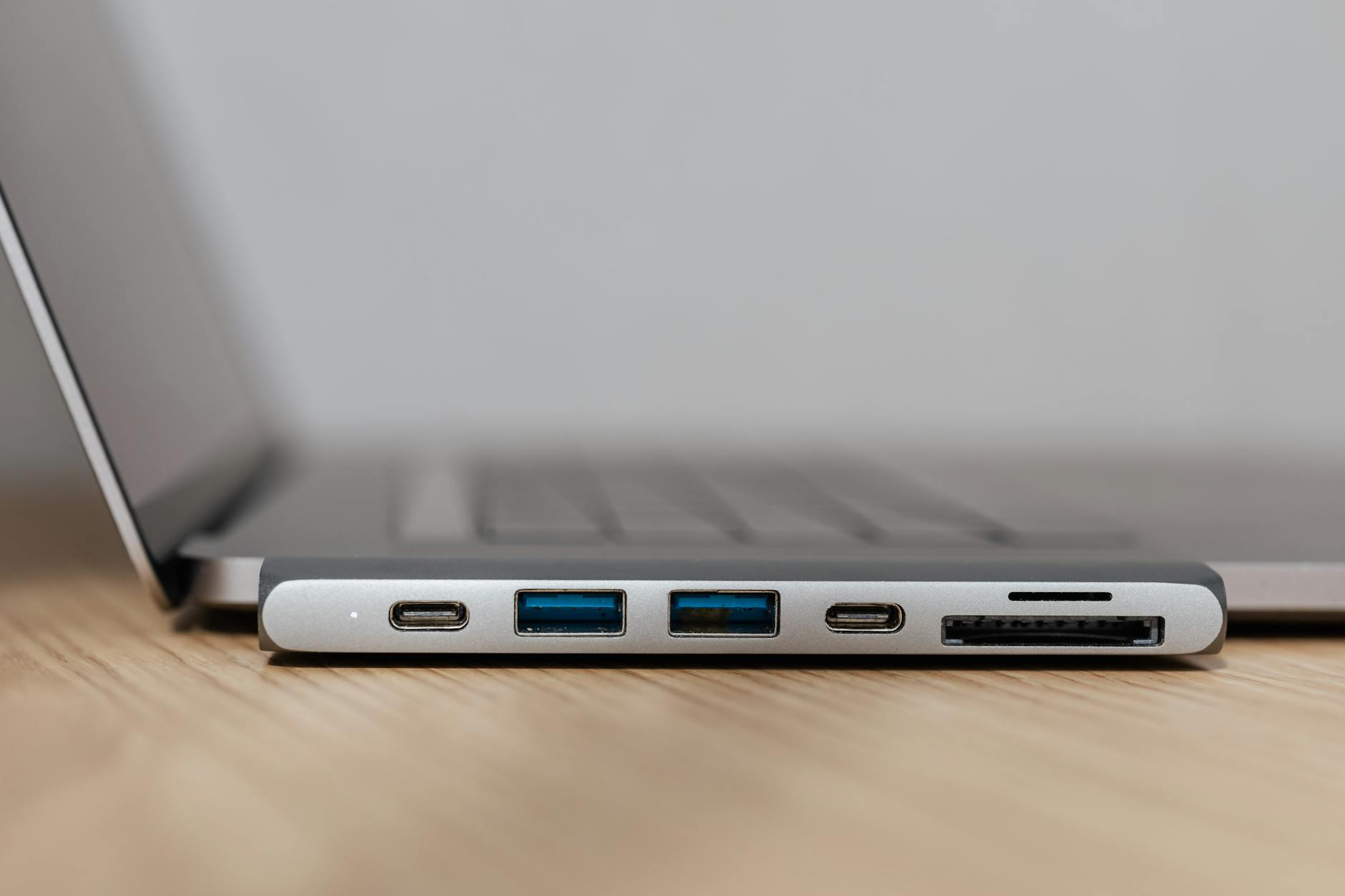
Thunderbolt ports appear on most mid-range and premium business laptops, often listed as a selling point alongside processing speed and RAM. The problem is that Thunderbolt 3, Thunderbolt 4, and USB4 are treated as interchangeable in procurement discussions, and they're not. The differences affect docking station compatibility, external GPU support, display output, and power delivery, all in ways that matter to fleet buyers making decisions that stick for three to four years.
What Thunderbolt actually is
Thunderbolt is Intel's high-speed connector standard, delivered over a USB-C physical port. A Thunderbolt port looks identical to a plain USB-C port from the outside. The difference is in what the controller behind it supports. Thunderbolt 3 and 4 both carry up to 40 Gbps of bandwidth, but Thunderbolt 4 tightened the mandatory minimum requirements so that features like dual 4K display output and PCIe tunnelling are guaranteed rather than optional.
USB4 Version 2 pushes bandwidth to 80 Gbps and is appearing on newer AMD and Intel platforms. It's backwards compatible with Thunderbolt 3 peripherals in most cases, but not all USB4 ports support the full Thunderbolt feature set. A port labelled "USB4 40Gbps" may not pass Intel's Thunderbolt certification, which affects whether a Thunderbolt dock works as expected.
Why the version number matters for fleet procurement
Most corporate docking stations sold in Australia over the past three years were designed around Thunderbolt 3 or 4. Connect a Thunderbolt 4 dock to a certified Thunderbolt 4 port and the experience is predictable: 100W power delivery, dual display output, wired Ethernet, and USB peripherals all through one cable. Connect the same dock to a USB-C port with USB 3.2 behind it, and you may get charging but little else.
The gap matters most in hot-desking and hybrid work environments, where staff rotate between desks or carry laptops between office and home. A fleet that mixes Thunderbolt 4 and USB-C-only devices will generate a disproportionate share of support tickets once users discover certain docks don't work on certain machines. If your docking station strategy was built around Thunderbolt, the laptop spec needs to match it explicitly, not just share the same connector shape.
Thunderbolt and external GPU enclosures
External GPU enclosures connect over Thunderbolt and can extend the capability of thin business laptops for CAD, video editing, or AI-accelerated workloads without requiring a bulkier discrete GPU inside the chassis. This only works reliably when the laptop's Thunderbolt controller supports PCIe tunnelling, which Thunderbolt 4 mandates but Thunderbolt 3 implementations sometimes limit to x2 instead of x4 lanes.
Halving the PCIe lanes has a real cost: an eGPU running at x2 PCIe 3.0 operates at roughly 40% lower throughput than the same card at x4, which translates directly into frame rates and render times. If eGPU support matters for any segment of your fleet, checking whether a specific device's Thunderbolt port exposes x4 PCIe lanes is non-negotiable. For a deeper look at this, the eGPU compatibility guide for Australian IT buyers covers the enclosure and driver variables in detail.
How many Thunderbolt ports is enough?
Most business laptops ship with one or two Thunderbolt-capable ports and a mix of plain USB-C ports. The arrangement matters. If a device has one Thunderbolt 4 port and one USB-C 3.2 port, only one of them will drive a Thunderbolt dock at full capability. Users who connect a dock to the wrong port and then wonder why their display isn't working represent a predictable support cost.
The physically identical appearance of Thunderbolt and USB-C ports is the single biggest source of user confusion in mixed fleets. Some vendors address this with a small lightning bolt icon next to the port; others don't mark them at all. It's worth checking how clearly a device labels its ports before adding it to a standard image. Four or five support calls per 100 devices per year is a conservative estimate of the cost of not checking.
Power delivery over Thunderbolt
Thunderbolt 4 ports support USB Power Delivery, with certified docks delivering up to 100W back to the host laptop. That's enough to charge most 13- to 15-inch business laptops at full speed while running peripherals. Larger 16-inch devices with discrete GPUs may require more than 100W under sustained load, which means the battery drains slowly even when plugged in through a dock.
USB PD 3.1, which allows up to 240W over a single USB-C cable, is beginning to appear on newer hardware. It isn't part of the current Thunderbolt 4 specification, so it requires a separate USB-C Power Delivery cable and charger rather than passing through a Thunderbolt dock. For IT buyers standardising on a single-cable desk setup, understanding this distinction prevents undersized charging infrastructure. The broader picture of USB-C Power Delivery standards for business laptops is worth reading alongside any Thunderbolt procurement decision.
Daisy chaining and device topology
Thunderbolt supports daisy chaining, where up to six devices connect in a chain from a single port. In practice, most enterprise deployments use a single dock rather than a chain, but the topology matters when connecting multiple monitors or storage arrays without a hub. Each device in a chain consumes bandwidth, so the order matters. Place the storage device closest to the host and the displays furthest away to get the best effective throughput.
One often-missed limitation: Thunderbolt docks typically expose downstream USB-A and USB-C ports running on a separate USB 3.2 controller, not on the Thunderbolt fabric itself. Heavy USB peripheral use (barcode scanners, lab instruments, high-speed storage) on those downstream ports doesn't consume Thunderbolt bandwidth, but it can saturate the dock's internal USB controller independently. This is worth testing with representative peripheral loads before large-scale rollout.
Checking the spec before you buy
Laptop datasheets frequently list a port as "USB-C / Thunderbolt 4" without specifying how many ports carry Thunderbolt capability versus standard USB-C. The only reliable source is the Intel Thunderbolt product certification database or the vendor's own port topology diagram, not the headline spec table on a retailer's product page.
Three things are worth confirming for every device under evaluation: which specific ports carry Thunderbolt certification, the maximum PCIe lane count (x2 or x4) for eGPU use, and the maximum power delivery wattage the port accepts as an input. These three numbers determine compatibility with existing dock infrastructure and inform whether a refresh creates a hidden support burden or a clean upgrade.
Intel's Thunderbolt product certification database lists every certified device and accessory, and cross-referencing a shortlisted laptop model there takes less than two minutes. It's the fastest way to confirm that a device marketed with Thunderbolt 4 actually passed the full certification suite rather than shipping with a Thunderbolt controller running in a reduced mode.