
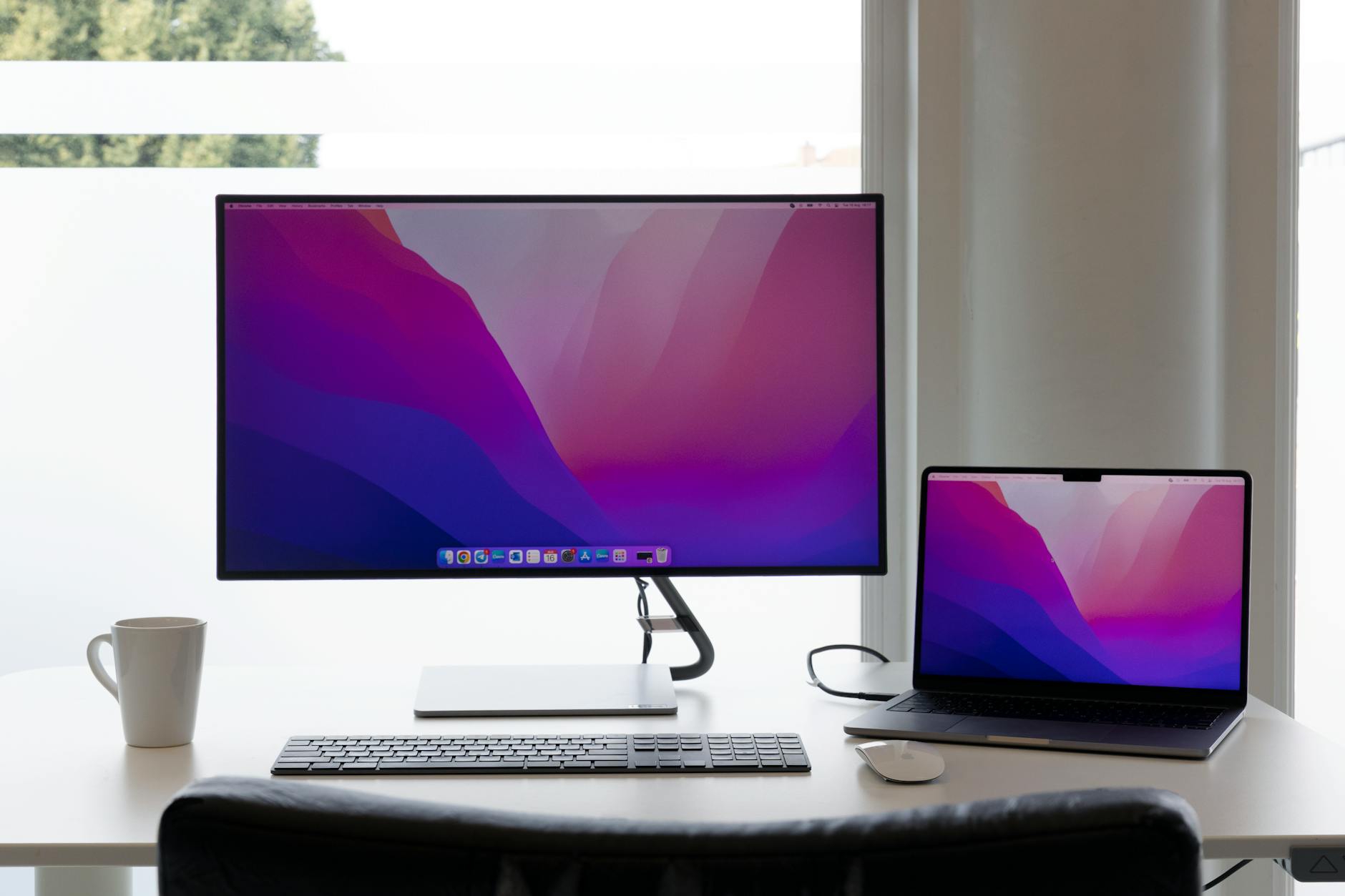
Connecting a laptop to a monitor or TV is one of those tasks that should take thirty seconds and sometimes consumes an afternoon. The core problem is that laptops ship with different port combinations, monitors accept different signals, and the cable sitting in your desk drawer may not carry what you think it does. This guide cuts through the confusion around USB-C to HDMI, DisplayPort, and every adapter in between.
What port does your laptop actually have?
Start by identifying what's on the side of your machine. Modern business laptops typically offer one or more of the following output options.
- USB-C (with DisplayPort Alt Mode or Thunderbolt): the slim oval port found on most laptops made after 2018. Not every USB-C port outputs video. Look for a small lightning bolt (Thunderbolt) or a small DP logo next to the port. If neither symbol appears, that port may be data-only.
- HDMI: the trapezoidal port common on consumer laptops and many business machines. Full-size HDMI is most common; some thinner laptops use Micro-HDMI.
- DisplayPort (DP): a notched rectangular connector favoured on workstations and many professional monitors. Less common on laptops than HDMI but still present on a number of ThinkPads and Precision models.
- Mini DisplayPort: the smaller version of DisplayPort, once common on MacBooks and Surface devices before USB-C took over.
If you're buying a new device for your team, the article on business laptop ports and what your team actually needs goes deeper on port selection across different fleet sizes.
USB-C to HDMI: what you need to know before you buy a cable
USB-C is now the most common video output on slim laptops, but the connection hides real complexity. USB-C is a physical connector shape, not a protocol. What matters is whether the port inside your laptop supports DisplayPort Alt Mode, Thunderbolt 3, or Thunderbolt 4. All three can carry video to an HDMI display, but they do it differently.
A USB-C to HDMI cable or adapter works by converting the DisplayPort signal travelling over the USB-C connection into an HDMI signal the TV or monitor can read. For most setups, a passive USB-C to HDMI adapter (around $15–$40 from reputable Australian retailers) handles the job fine. Buy one rated for the HDMI version you need: HDMI 2.0 for 4K at 60 Hz, HDMI 2.1 if you're targeting 4K at 120 Hz or 8K.
Thunderbolt ports add one useful extra: they can daisy-chain monitors and pass through power simultaneously. If your laptop charges over USB-C and you want a single-cable desk setup, a Thunderbolt dock lets you connect power, a display, and peripherals through one port. The article on business laptop Thunderbolt ports and what IT buyers actually need explains the version differences and what each one supports.
DisplayPort explained: direct and Alt Mode
DisplayPort is the display industry's native digital standard, developed by VESA. It supports higher refresh rates and greater bandwidth than HDMI at equivalent versions, which is why gaming monitors and professional displays favour it. For a laptop-to-monitor connection, DisplayPort offers a few practical advantages.
First, DisplayPort supports daisy-chaining: you can run a cable from your laptop to monitor one, then another cable from monitor one to monitor two, without needing a second port on the laptop. Not all monitors support this, so check the spec sheet for "DisplayPort MST" (Multi-Stream Transport) before assuming it will work.
Second, DisplayPort Alt Mode over USB-C gives you the same bandwidth as a physical DisplayPort connector. That means a USB-C to DisplayPort cable is often the best choice for a high-refresh-rate monitor. You get full 1440p at 165 Hz or 4K at 144 Hz, depending on the laptop's GPU and the cable's rating. Standard HDMI 2.0 tops out at 4K 60 Hz, so the gap matters for anyone using the laptop as a primary workstation display.
Connecting to a TV: what's different
Most modern TVs accept HDMI input, so the connection is usually a USB-C to HDMI adapter or a straight HDMI cable. The wrinkle is that TVs are designed for 10-foot viewing distances, not desk use, and their input lag, pixel response, and text rendering are tuned accordingly.
For occasional presentations or media playback, a TV connection works fine. For daily use as a monitor, the picture quality and lag of a dedicated monitor will be noticeably better. If the TV is a 4K set and your laptop GPU supports 4K output, make sure you're running HDMI 2.0 or later; older HDMI 1.4 cables cap out at 4K 30 Hz, which produces visible judder when moving windows.
Once connected, Windows typically detects the display automatically. On macOS, go to System Settings, then Displays to arrange outputs and set resolution. If the TV shows a black screen or the wrong resolution, right-click the desktop on Windows and select Display Settings to force detection.
Adapters and docks: when a cable isn't enough
Some laptop and display combinations don't share a common port, and you'll need an adapter or dock in between. A few rules keep this simple.
Passive adapters (USB-C to HDMI, Mini DisplayPort to HDMI) work for most standard setups at no signal loss. Active adapters are needed for certain conversions, particularly DisplayPort to HDMI 2.0 or higher, where the signal conversion requires powered electronics inside the adapter.
Cheap adapters from unbranded sources fail more often than branded ones, particularly at higher resolutions. For Australian buyers, reputable options include StarTech, Club3D, and Belkin. All three sell through local retailers and carry stock rated for specific HDMI and DisplayPort versions, so you know exactly what you're buying.
Docking stations go further. A good dock connects once to your desk, and your laptop connects once to the dock. The dock handles the display output, USB peripherals, Ethernet, and sometimes charging. They're particularly useful for hybrid workers who move between home and office. The article on business laptop docking stations and what actually matters walks through what to check before buying one for a fleet.
Troubleshooting: when nothing appears on screen
A blank screen after connecting is one of the most common complaints. Work through these steps in order.
Check the input source on the monitor or TV first. It sounds obvious, but selecting the wrong HDMI port (HDMI 1 vs HDMI 2) accounts for a surprising number of "broken" connections. Then confirm the cable supports the resolution you're trying to run. An HDMI 1.4 cable will not carry 4K 60 Hz, full stop.
On Windows, pressing Windows key + P brings up the projection menu. Set it to "Extend" or "Duplicate" to push signal to the external display. On macOS, holding Option while clicking Displays in System Settings reveals a "Detect Displays" button that forces a rescan. If the display still doesn't appear, try a different USB-C port on the laptop. As noted above, not every USB-C port outputs video.
Finally, driver issues cause problems on Windows more than macOS. Open Device Manager, expand Display Adapters, right-click your GPU, and select "Update driver." On laptops with both integrated Intel and discrete Nvidia or AMD graphics, the display output may be tied to the discrete GPU and require the correct driver to function over USB-C.
Charging while connected: the single-cable setup
If your laptop charges over USB-C (which covers most devices made in the past four years), a Thunderbolt 4 dock or a USB-C hub with Power Delivery passthrough lets you run a display and charge simultaneously from a single cable. The dock plugs into the wall; your laptop plugs into the dock with one USB-C cable and receives both video signal and charging current.
Check the Power Delivery wattage. A 65W dock charges most ultrabooks fully. Gaming laptops or mobile workstations may need 100W or more. Running a display while the laptop is under load draws significant power, so a dock rated below the laptop's requirement will charge slowly or not at all under heavy use.
Getting the cable right is the cheapest performance upgrade available to any laptop user working from a desk. A $25 USB-C to DisplayPort cable and a decent monitor will outperform a TV connected over a bargain HDMI adapter every time.