
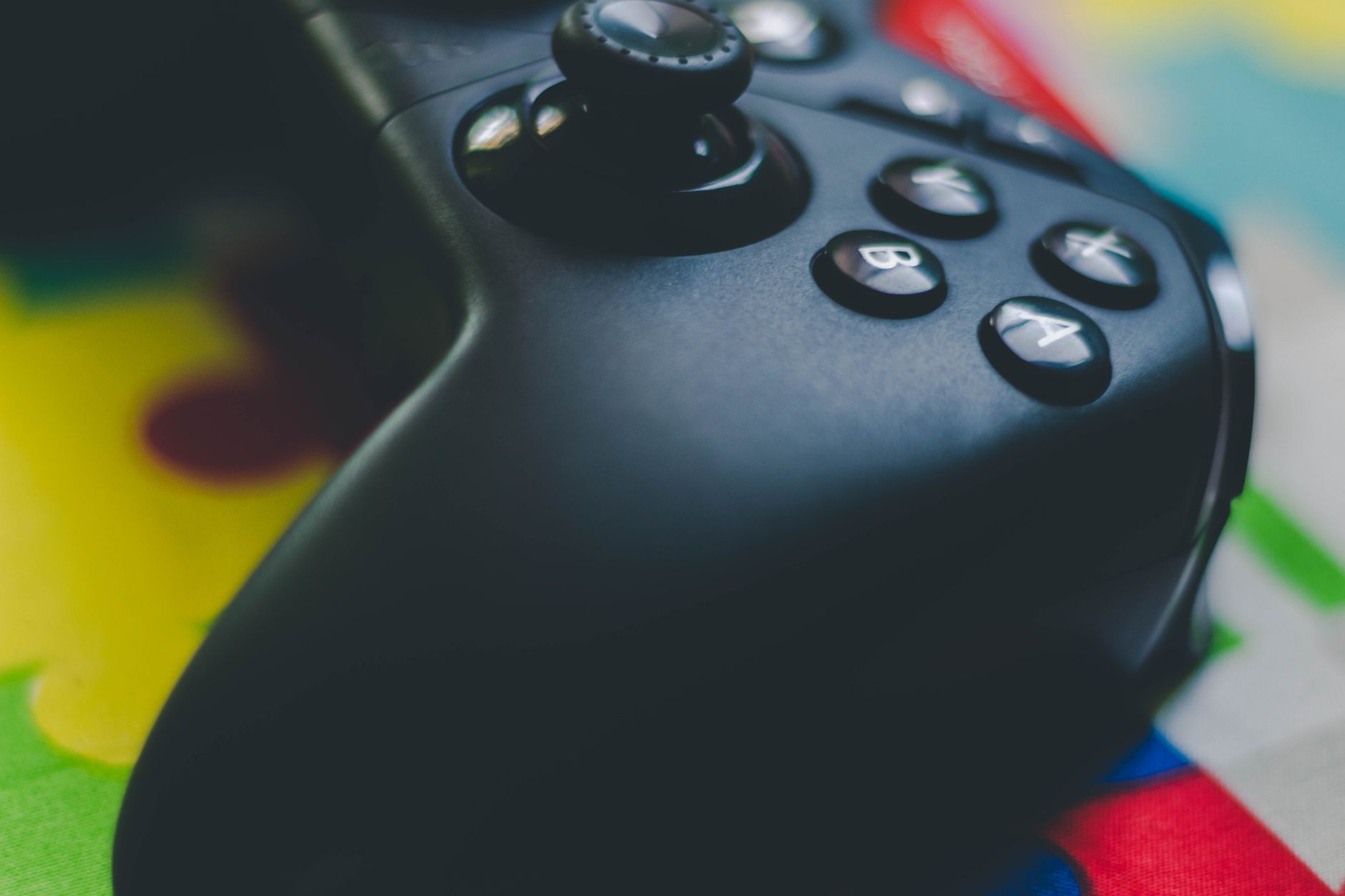
PS5 accessibility settings sit behind a menu most players never open, which is a shame. Sony has built a genuinely comprehensive set of options covering vision, hearing, motor control, and cognitive load. Some of them, like zoom and button remapping, are useful to almost everyone. Others target very specific needs. Knowing what's there means you can set the console up properly, whether for yourself or for someone else in your household.
Vision accessibility options
The PS5 includes a screen zoom function that magnifies any part of the interface. Hold the PS button and press the Square button to toggle it on and off once it's configured. It's not elegant, but it works across the entire system UI and in most games.
Colour correction mode is the setting that tends to get missed. It adjusts the colour palette for three types of colour vision deficiency: protanopia (red-weak), deuteranopia (green-weak), and tritanopia (blue-weak). The console applies this correction system-wide, though in-game colour grading can partially override it. Players who've lived with colour blindness for years often report the game world looks meaningfully different with this turned on.
Bold text is a separate toggle that increases font weight across system menus. If you've ever squinted at the PS5's default light-grey text on white backgrounds, this helps. It doesn't carry through to in-game text, which is controlled by individual titles.
High contrast mode offers four presets: off, preset 1 (dark background with white text), preset 2 (light background with dark text), and preset 3 (dark with yellow text). The yellow-on-dark option is the strongest and is designed for users with low vision rather than colour blindness specifically.
Hearing accessibility options
The PS5 has a system-level mono audio toggle. When enabled, it collapses stereo audio into a single channel and plays it through both ears equally. This matters for players who are deaf or hard of hearing in one ear and use headphones. Without mono audio, sounds panned hard to one side become inaudible.
There's also a visual alerts option that flashes the screen or the DualSense controller's light bar when certain system sounds play. It's designed for players who can't hear audio cues at all, though the implementation is limited to system-level notifications rather than in-game audio.
The PS5 doesn't include a built-in subtitle system at the console level. Subtitles are handled game-by-game, which means the experience varies wildly. Sony's first-party titles like God of War Ragnarök have excellent subtitle options including background opacity and size scaling. Third-party support is inconsistent. This remains a genuine gap in the PS5's accessibility offer, and something worth understanding if you're evaluating the console for a deaf or hard-of-hearing player.
Motor and control accessibility
Button remapping is the most practically useful accessibility feature on the entire console. Every button on the DualSense can be reassigned to any other button at the system level, independently of whatever the game expects. This matters because it means a player who can't reach the triggers can map those functions elsewhere, without waiting for individual games to add their own remapping support.
The PS5 also supports button hold versus toggle for actions that require holding a button, such as sprinting in many games. Switching these to toggles removes the sustained physical press requirement, which helps players with limited grip strength or hand fatigue.
Trigger deadzone adjustment is available through the DualSense's own settings rather than the accessibility menu specifically, but it's worth knowing about. Reducing the deadzone means the trigger registers input earlier in its travel, which is useful for players who can't press the trigger all the way down due to finger stiffness or reduced strength. If you're also interested in how the DualSense's hardware works underneath, the haptic feedback and adaptive triggers article covers the physical mechanism in detail.
Stick sensitivity adjustments let players change how responsive each thumbstick is to movement, which helps players with tremor or limited fine motor control dial in a setting that doesn't overcorrect their input.
Cognitive and interface accessibility
The PS5 doesn't advertise cognitive accessibility as a separate category, but a few settings address it indirectly. The simplified game launch screen reduces the amount of content shown when you open a title, cutting out news feeds, activity cards, and social features. For players who find information density overwhelming, this makes starting a game a simpler task.
Auto sign-in removes the step of selecting a user profile every time the console starts. Small friction points like this matter more than they might appear to, particularly for players with cognitive conditions who benefit from reduced decision points in routine tasks.
The PS5's rest mode interacts with accessibility in one specific way worth flagging: if a player relies on the console's screen reader or zoom settings, rest mode sometimes doesn't restore the display output quickly enough for those settings to be active when the screen comes back on. If you're experiencing this, the PS5 rest mode problems article has a practical breakdown of what's actually happening and which workarounds help.
Screen reader and text-to-speech
Sony added a screen reader to the PS5 in a firmware update. It reads out system menu text using text-to-speech, and can be activated by holding the PS button and pressing Triangle. The reading speed and volume are both adjustable. It covers the system interface and the PlayStation Store reasonably well. In-game menus are not read out, because that would require each developer to build screen reader support into their title separately.
Text-to-speech in party chat lets the console read out incoming chat messages aloud. Speech-to-text runs in the other direction: the DualSense microphone captures voice input and converts it to text that appears in chat. Both features are designed to make party chat usable without a headset and to give non-verbal players a way to participate. The PS5 party chat and voice features article goes into more detail on where these work and where they fall short in practice.
Setting up for someone else
All accessibility settings on the PS5 are tied to a user profile. If you're setting up the console for a family member with specific needs, the cleanest approach is to configure a separate profile for them with the relevant settings applied. That way, their display, audio, and control preferences don't affect other users on the same console. Profile switching is fast on the PS5, so the overhead of doing this is minimal.
One setting that doesn't carry per-profile is the TV display output. HDMI colour depth, HDR, and resolution settings apply system-wide. If one user needs a specific display calibration for accessibility reasons, that will affect every profile on the console.
Sony has improved the PS5's accessibility features through firmware updates since launch. Checking for system software updates regularly is the easiest way to make sure you have the current set of options, since new accessibility features have been added without fanfare in several past updates.