
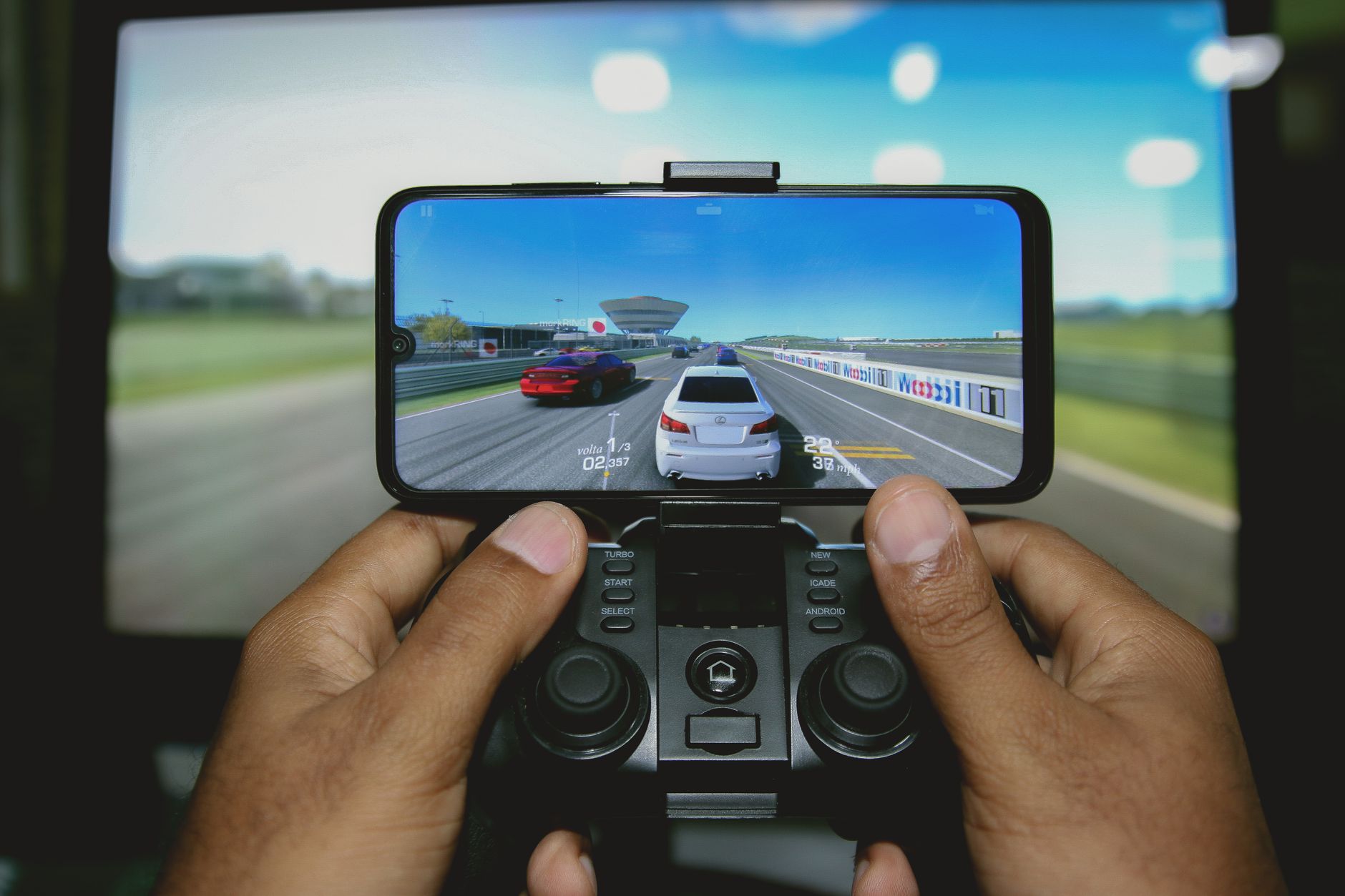
PS5 Remote Play lets you stream your console's output to another device and send controller inputs back, effectively running your PS5 from anywhere with a decent internet connection. Sony has supported some version of Remote Play since the PS3 era, but the PS5 implementation is the most polished. It's also the most commonly misunderstood, with players expecting a lag-free mirror of local play and finding something messier in practice.
This guide covers how Remote Play actually works, what devices it runs on, the network conditions it needs, and where it genuinely earns its keep versus where you'll want to stick with your couch.
How PS5 Remote Play works
Remote Play encodes your PS5's video output as a compressed stream and sends it over your local network or the internet to a connected device. The PS5 Remote Play app is available for Windows, macOS, iOS, Android, and other PlayStation consoles. You install the app, sign in with your PlayStation Network account, and the app finds your PS5 either on the same network or via Sony's relay servers.
The PS5 must be powered on or in rest mode for Remote Play to work. Rest mode is the more practical option for most players: the console wakes on demand when the Remote Play app connects. If you've ever had trouble with the console not reliably waking, the PS5 rest mode problems guide covers the most common causes, including power-saving settings that interfere with network wake-up.
Audio and video travel from the PS5 to your device. Controller input travels back the other way. That round-trip adds latency, and how much latency depends almost entirely on your network.
What devices can run Remote Play
Sony officially supports the following:
- Windows 10 and Windows 11 PCs
- macOS 10.15 (Catalina) and later
- iOS 16 and later (iPhone and iPad)
- Android 12 and later
- PS4 and PS5 consoles
The PC and Mac clients offer the most flexibility because you can pair a DualSense controller via USB or Bluetooth and get very close to a console experience on a monitor. Mobile is the bigger compromise. Touchscreen controls exist but they're awkward for anything beyond casual browsing. A DualSense connected via Bluetooth to your phone works well, though Sony's mobile controller clip accessories help keep the setup manageable.
There's also a second-screen PS5-to-PS5 scenario: you can Remote Play from one PS5 to another, which is niche but occasionally useful when someone else is using the primary TV.
Network requirements: the honest version
Sony recommends a minimum of 5 Mbps upload on the PS5's end and at least 5 Mbps download on the receiving device. In reality, 5 Mbps will give you a soft, blurry picture that's fine for turn-based games and terrible for anything with fast movement. To get 1080p at 60fps, you want 15 Mbps or more on both ends, and low latency matters as much as raw throughput.
Latency is the real constraint. A round-trip of under 40ms feels playable for most genres. Between 40ms and 80ms, action games start to feel sluggish. Above 80ms, reflex-dependent titles become genuinely frustrating. Those figures assume the encoding and decoding overhead on top of raw network latency.
On a local network, Remote Play is fast enough for almost anything if both your PS5 and receiving device are connected via ethernet rather than Wi-Fi. Over the internet, results vary by your NBN tier, router quality, and the congestion between your network and Sony's relay infrastructure. The PS5 network settings guide has specific advice on configuring your console's connection for better streaming performance, including MTU settings and DNS options worth trying.
Video quality settings
The Remote Play app lets you set the resolution and frame rate before connecting. Options are 360p, 540p, 720p, and 1080p, with frame rate options of standard (30fps) or high (60fps). Not every resolution and frame rate combination is available on every device.
A few practical points. 1080p at 60fps looks excellent on a PC monitor but demands a solid connection. If you're on a variable NBN connection, 720p at 60fps is often a better trade-off because it degrades more gracefully under congestion. Frame rate stability matters more than resolution for fast games. A steady 540p60 is more playable than stuttering 1080p30.
HDR output is not supported through Remote Play. The stream is SDR regardless of your PS5's output settings. If a game's visuals are heavily tuned around HDR, you'll notice the difference.
Controller support
The DualSense works over both USB and Bluetooth when paired to a PC or Mac running Remote Play. On mobile, Bluetooth pairing is the only option. The DualSense's haptic feedback and adaptive triggers do not transmit over Remote Play. You get a standard rumble signal at best, and on some connections even that is absent.
This is worth knowing if you've invested in titles that lean heavily on the DualSense's physical feedback as part of the core experience. Remote Play strips that layer out entirely. The haptic feedback and adaptive triggers breakdown explains what that feedback actually communicates in games, which helps calibrate how much you'll miss it during remote sessions.
Third-party controllers that don't use the DualSense protocol will work for basic input but won't carry any PS5-specific signals.
When Remote Play is genuinely useful
Remote Play earns its keep in a few specific situations. Playing on a PC monitor while someone else uses the TV is the most common use case for households with one PS5. The latency on a local network is low enough that even moderately fast games are playable, and the PC client offers the most stable experience.
Casual sessions away from home work well for turn-based RPGs, visual novels, card games, and anything else where a 40-to-60ms delay is unnoticeable. Downloading large game updates and checking on a lengthy install while you're away from the console is another practical use, since Remote Play gives you full access to the PS5's interface.
What Remote Play handles poorly: competitive multiplayer, platformers that require precise timing, fighting games, and fast-paced shooters. The latency floor over a typical 4G or 5G mobile connection is high enough to make these genres genuinely harder than on-couch play. It's not broken, it's just not equivalent.
Common problems and how to fix them
Connection failures at startup are usually one of three things: the PS5 isn't set to allow Remote Play (check Settings, System, Remote Play), the console isn't on the same PSN account as the app, or the network is blocking the required ports. Sony uses ports 9295 (UDP) and 443 (TCP); if your router has strict NAT settings, those may need to be opened.
Video stuttering mid-session almost always comes from network congestion. Running a wired connection on the PS5 side removes the biggest variable. If the receiving device is on Wi-Fi, moving closer to the router or switching to the 5GHz band helps. If you're connecting over the internet, there's limited tuning you can do beyond lowering the quality setting.
Audio dropping out is less common but happens on some Android devices. Restarting the app and reconnecting usually clears it. Persistent audio issues sometimes trace back to Bluetooth headphone interference on the receiving device.
Remote Play vs PS Plus Premium's cloud streaming
These two features are often confused. Remote Play streams your own PS5's output. PS Plus Premium's cloud streaming (PlayStation Cloud Gaming) runs games on Sony's servers and streams the result to you without needing a local console at all. They're different infrastructure, different game libraries, and different quality profiles.
Remote Play has no additional subscription cost beyond owning a PS5. Cloud streaming requires a PS Plus Premium subscription. For Australians, cloud streaming latency has historically been higher than Remote Play latency from home, because Sony's cloud gaming infrastructure serving Australian users routes through regional data centres that are geographically further away than your own living room.
Remote Play is the better option if you own a PS5 and want to play your existing library. Cloud streaming is the option if you don't have a console nearby at all.
Understanding these differences matters as Sony continues to expand its streaming options. The broader picture of where cloud gaming sits right now is covered in the PS5 game streaming and cloud gaming overview, which includes PS Plus Premium, xCloud comparisons, and what the Australian experience actually looks like in 2026.